Turn an MP4 into text and quote your own words in the video description
After recording a video, you might remember a line that would fit the description perfectly but have no idea where you said it. If you still have the original video, turn the speech into text first and use the transcript to find the line.
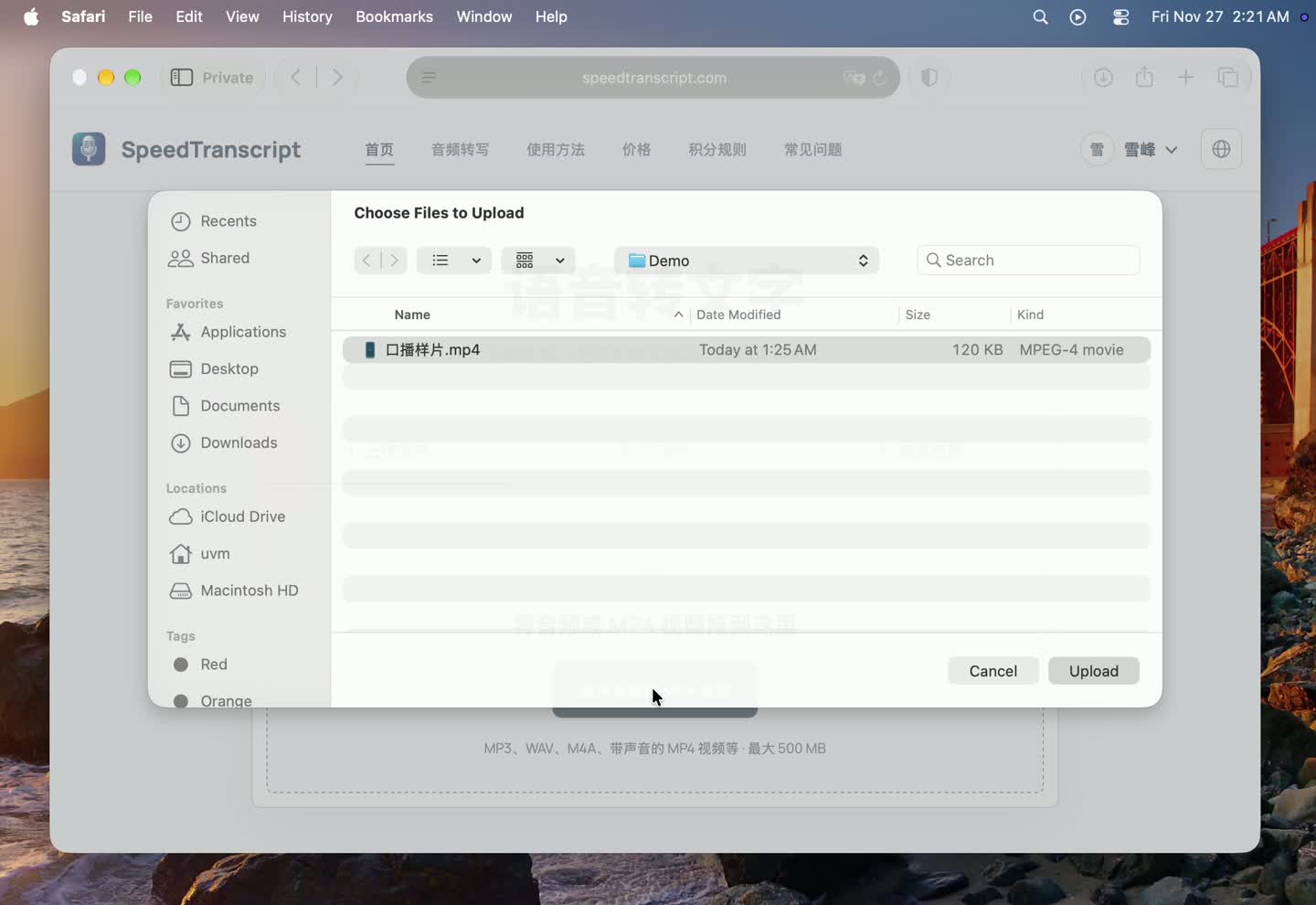
Choose the original MP4
Open SpeedTranscript in a desktop browser and choose your MP4 with sound. Once the file name appears, sign in and select Start transcription. You can use the original file without exporting a separate audio track.
Find the line and listen before quoting it
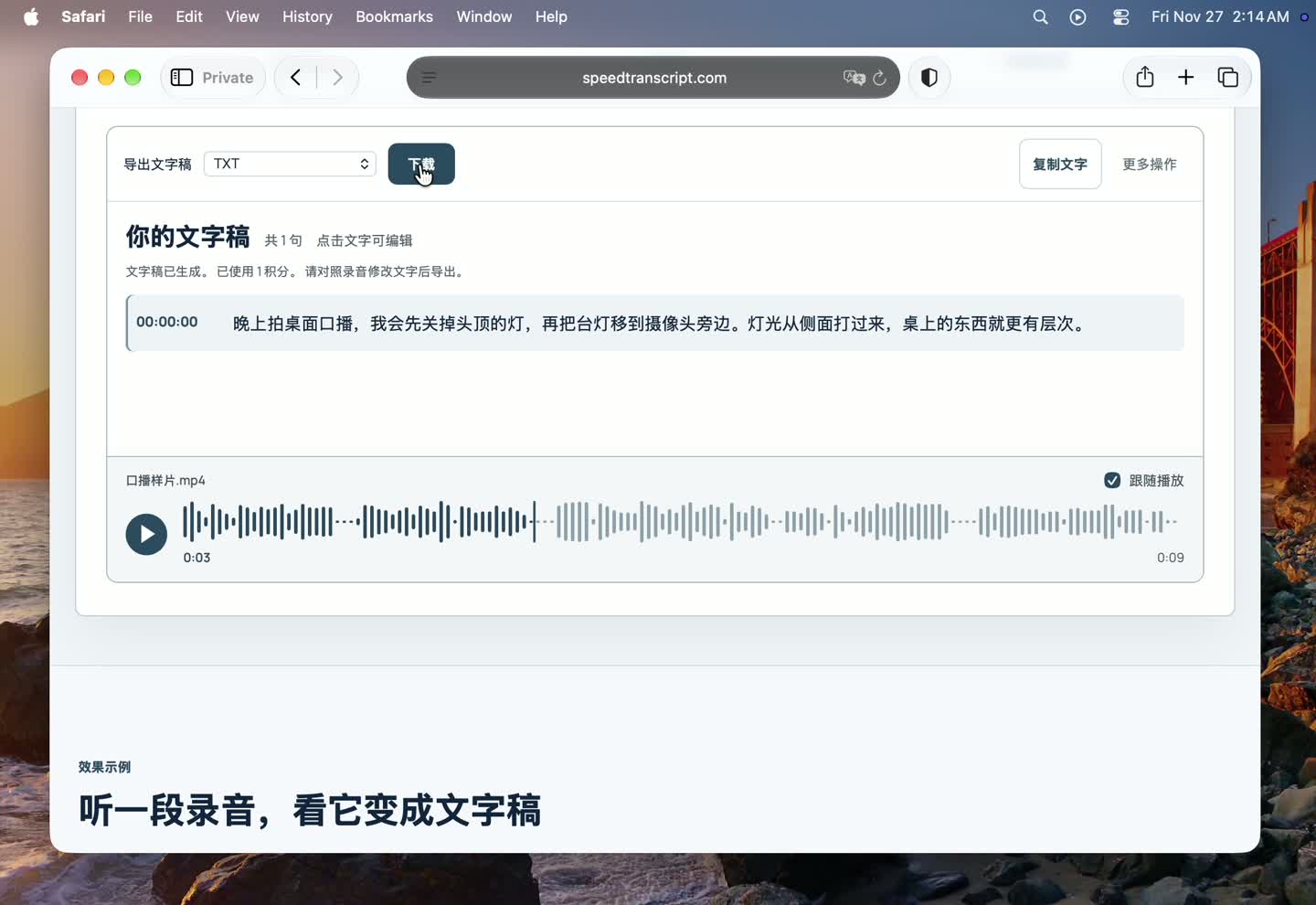
Find the line you plan to quote, select its timestamp, and press Play to hear the original. Listen again for names and numbers. Check qualifiers like “might” or “sometimes,” since dropping them can change the meaning. When you’re happy with the text, select TXT at the top of the results and choose Download to save a copy.
Give the quote a little context
One line from a clip about lighting a desk translates as “The light comes in from the side, which gives the objects on the desk more depth.” You can introduce the topic before quoting it. For example:
In this video, I show where to put a desk lamp when you’re filming at night. The light comes in from the side, which gives the objects on the desk more depth.
If the line relies on words like “this” or “like that,” read it on its own. If you need to see the video to understand it, use the preceding sentence to say what those words refer to.
SpeedTranscript is a browser-based speech-to-text tool. Search for SpeedTranscript, open the official site, and try it with your own MP4. The next time you write a description, pick a line worth quoting as it is, then listen to the few seconds around it.